🎛 AV System Quick Start Guide
The AV system control looks and works the same on the 8” fixed wall control screen, iPad, or mobile phone.
Mobile devices use the RTi Panel app.
-
To set up a new iPhone as a controller, see the setup instructions below.
-
To solve common problems, check the Troubleshooting Guide.
🏠 Home Screen
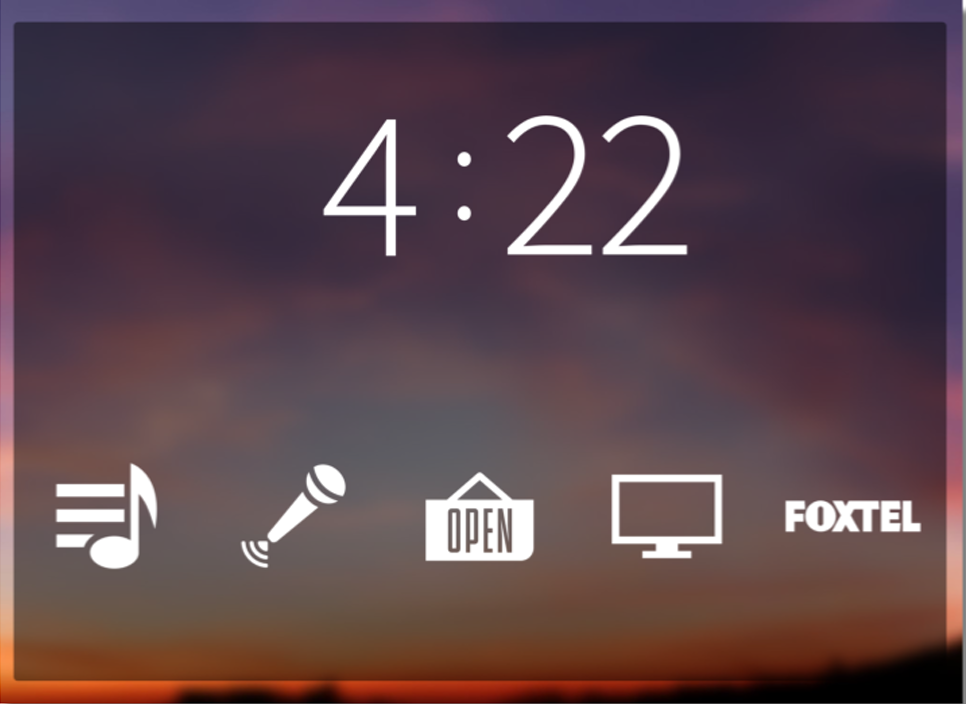
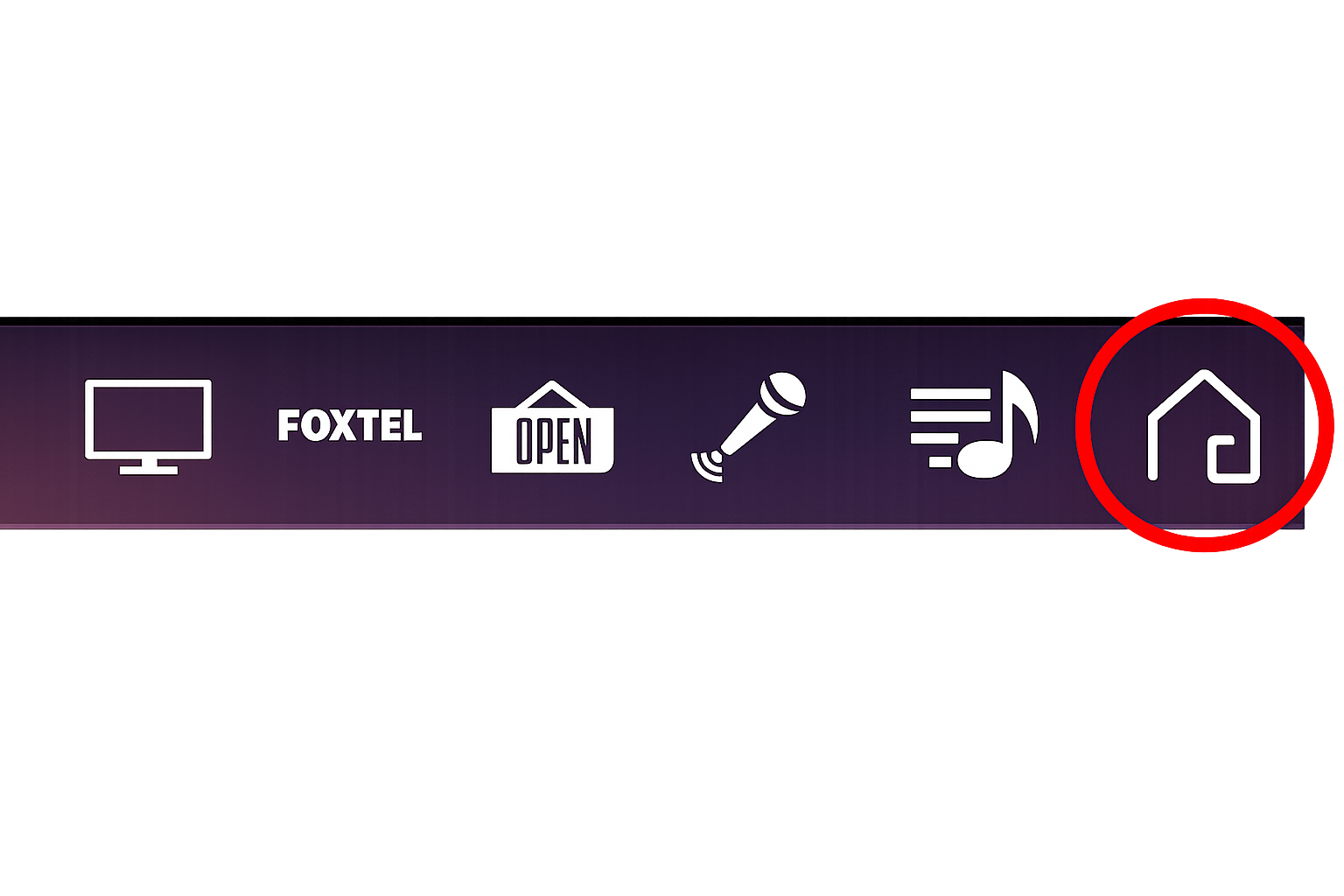
You can return to the Home Screen from any page by tapping the Home icon in the top right corner.
🎵 Audio Control Page
From the Home Screen:
-
Tap the Music icon (bottom left),
OR -
Select Music from the top menu on other screens.

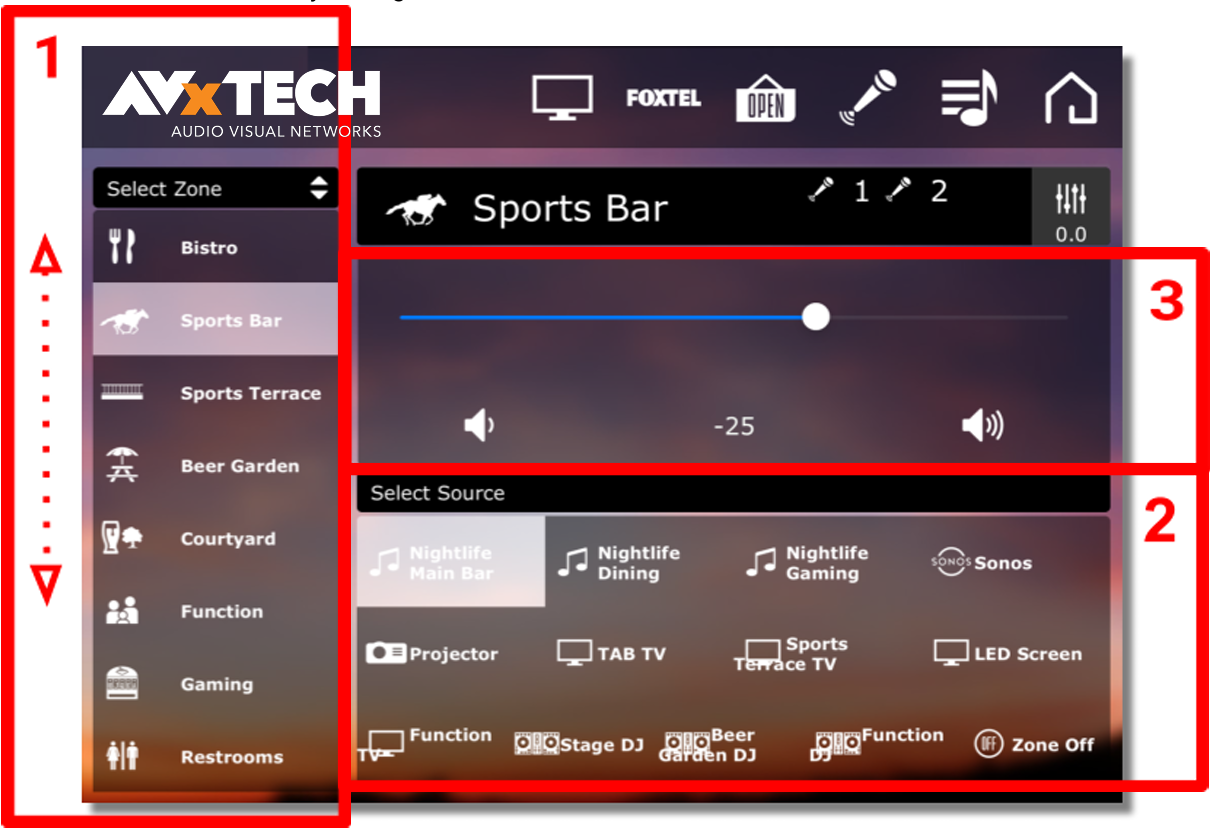
This is a 3-step process:
1️⃣ Select the Zone
-
Choose the Zone from the list on the left side.
-
Swipe the list to see all Zones.
2️⃣ Select the Source
-
Select the Source you want playing in that Zone.
-
When highlighted, that Source is active.
3️⃣ Set Volume
- Adjust the Volume using the horizontal slider.
🎤 Set Up a Microphone
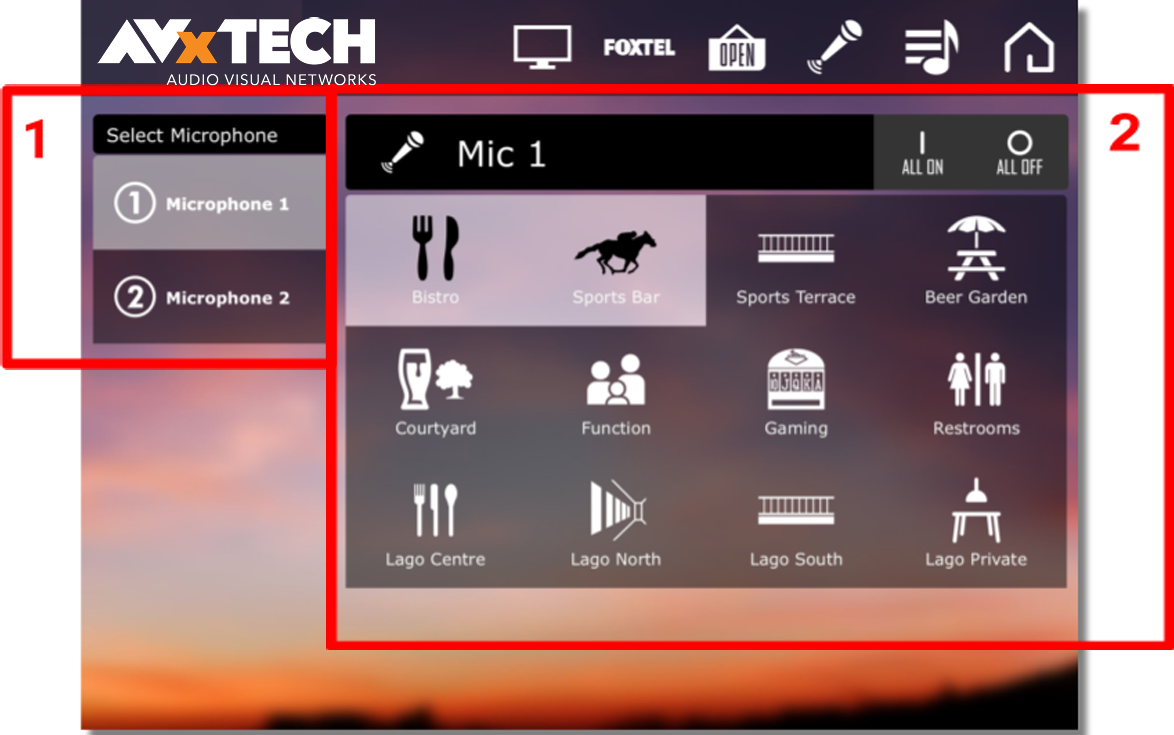
From the Home Screen, tap the Microphone icon.
This is a 2-step process:
1️⃣ Select the Microphone
-
Select the Microphone you are using.
-
The number is marked on the microphone body.
2️⃣ Select the Zones
-
Tap the Zones where the microphone should be heard.
-
Highlighted Zones have the microphone connected.
-
Tap again to toggle OFF in that area.
Quick Options
-
ALL ON– Connect to all Zones -
ALL OFF– Disconnect from all Zones
🎬 Scenes Menu
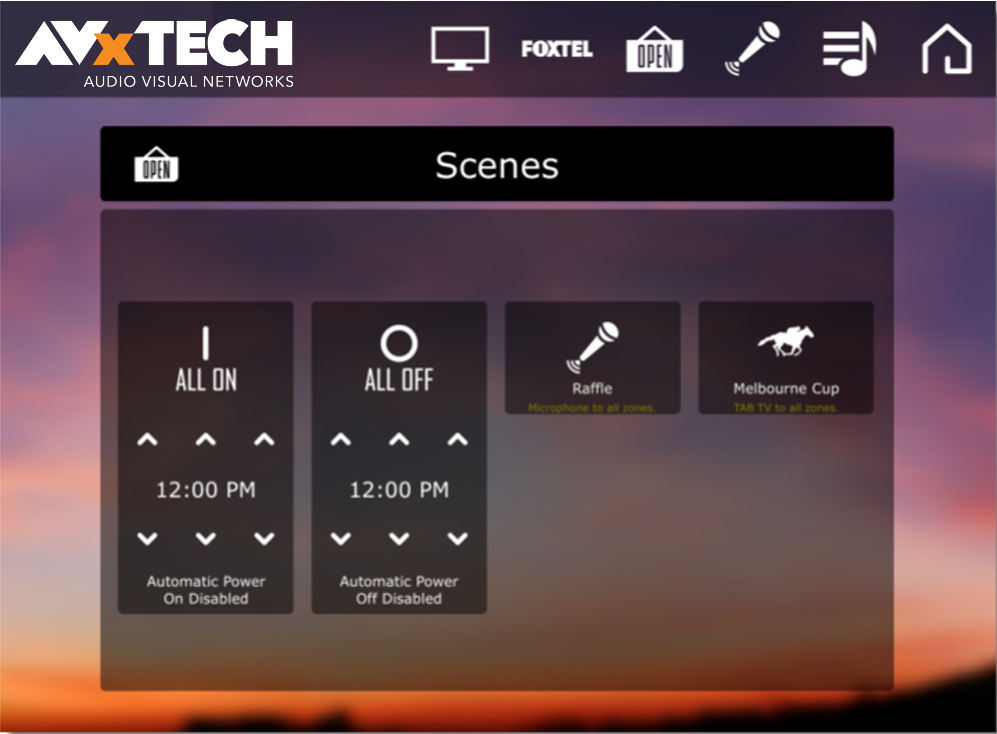
Tap the “Open” icon to use or edit Scenes.

Main System Controls
-
ALL ON– Turns the entire system ON -
ALL OFF– Turns the entire system OFF
⏰ Automatic (Scheduled) Power Control
1️⃣ Set Scheduled Time
- Use the up and down arrows to set automatic power ON/OFF times.
2️⃣ Enable or Disable
-
Tap Enable or Disable.
-
The button will highlight when Automatic Power is enabled.
🎟 Preset Buttons
-
Raffle Preset
-
Melbourne Cup Preset
These activate pre-configured combinations of Sources, Zones, and Volume levels.
📺 TV Menu
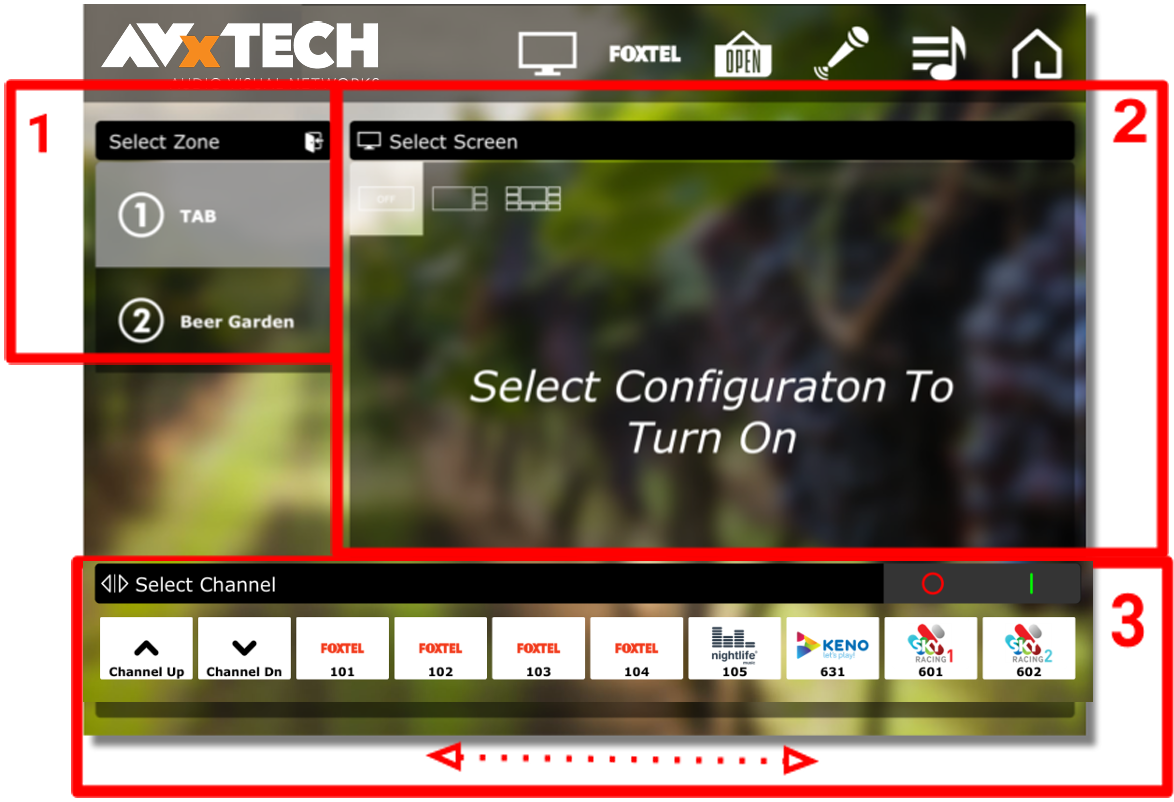
Tap the “Screens” icon to control a TV in a Zone.

3-Step Process
1️⃣ Select the Zone
Choose the Zone to control.
2️⃣ Select the Screen
Select the Screen.
3️⃣ Select the Channel
Choose the Channel from the list at the bottom.
Swipe to see all channels.
📡 Foxtel Setup
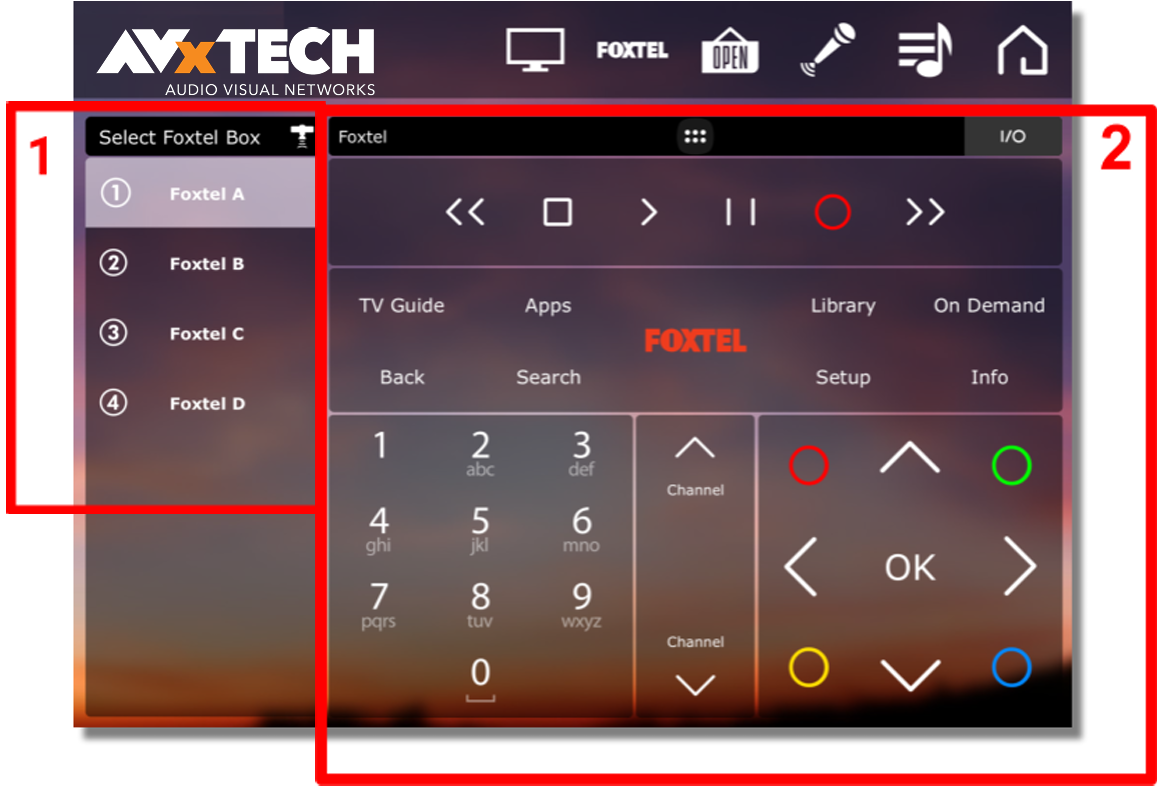
Tap the “Foxtel” icon.

2-Step Process
1️⃣ Select the Foxtel Box
Choose the Foxtel Box from the left column.
2️⃣ Select the Channel
Select the Channel from the main panel.
⚙ Management Page & Microphone Level Controls
1️⃣ Open Management
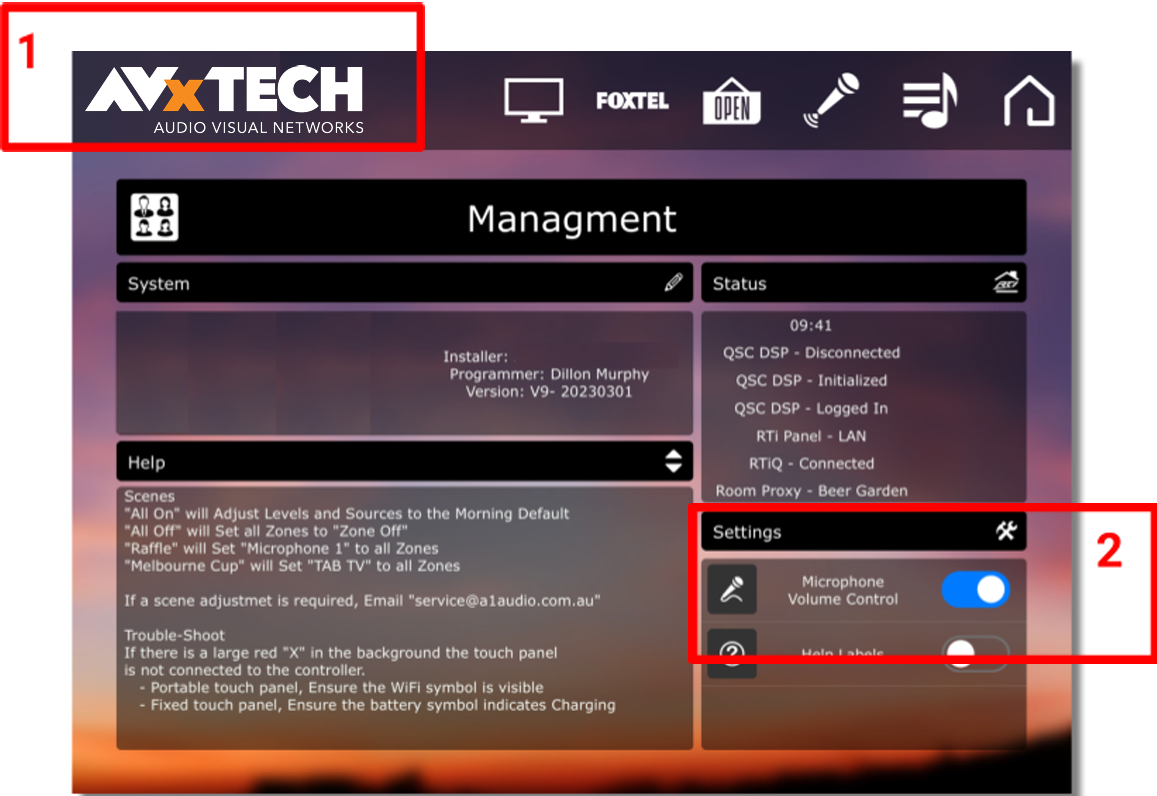
Tap the icon in the top left corner to open the Management Page.
2️⃣ Enable Microphone Volume Control
Tap the sliding switch next to Microphone Volume Control.
This will display microphone volume sliders on:
-
Audio Source pages
-
Zone Control pages
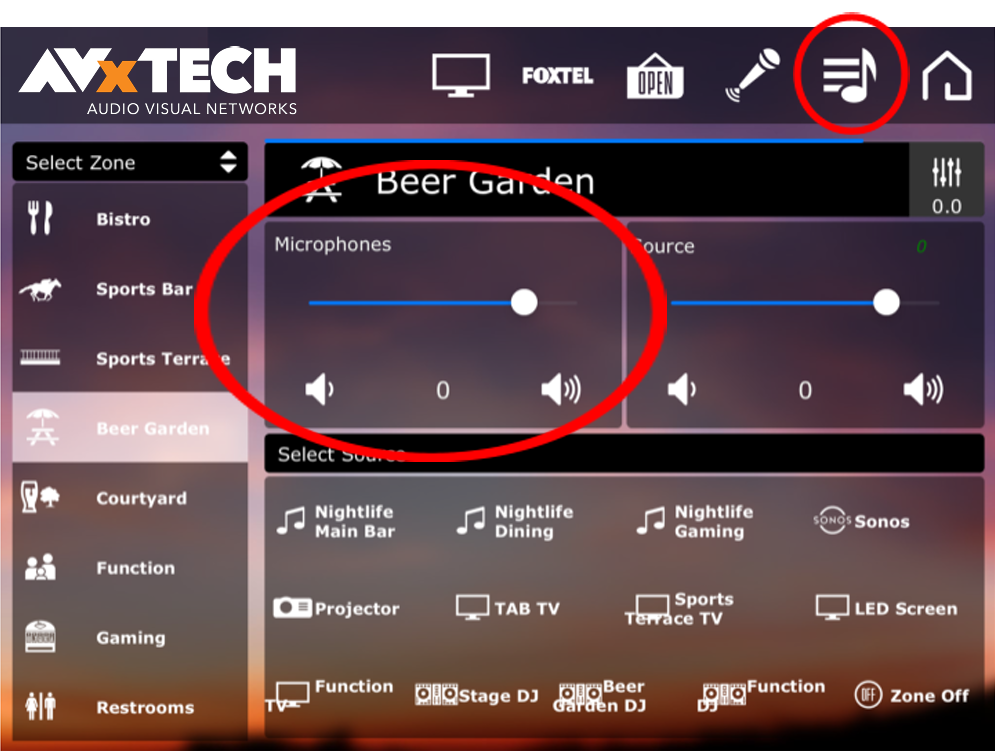
🎚 Microphone Level Control Per Zone
After enabling Microphone Volume Control, sliders will appear on the Audio Source and Zone Selection pages.
🛠 Troubleshooting Guide
🔶 ISSUE 1
The RTi app will not control the sound
The app is unresponsive, and there is an orange “X” in the background.
🔍 CHECK 1
Is the iPad connected to the correct wireless network?
Fix: Connect to the network that has the AV control.
🔍 CHECK 2
Is the iPad out of WiFi range?
Fix: Move to another location in the venue. Install wireless access points if coverage is inadequate.
🔍 CHECK 3
Is the WiFi down?
Fix: Contact your service provider.
🔶 ISSUE 2
There is no music playing anywhere in the venue
🔍 CHECK 1
Is the music streaming device playing?
Fix: Check that the Nightlife, Clix, Mustard, or Sonos streamer is on and playing.
🔍 CHECK 2
Has the Auto Power feature turned off or failed to turn on?
Fix: Check the Auto Power status, scheduled times, and whether it is enabled.
⚠ If the above points are not the issue:
Contact AVx Tech for support via text.
🔶 ISSUE 3
There is no music playing in one Zone
🔍 CHECK 1
Is the music source selected?
Fix: Go to the Audio Control page, select the Zone, and confirm the music source is selected.
🔍 CHECK 2
Is the volume level too low?
Fix: Check that the volume is high enough to be heard.
📱 Set Up an iPhone for the AV Control App
Step 1
-
Install the RTI app from the App Store.
-
Connect to the house WiFi.
-
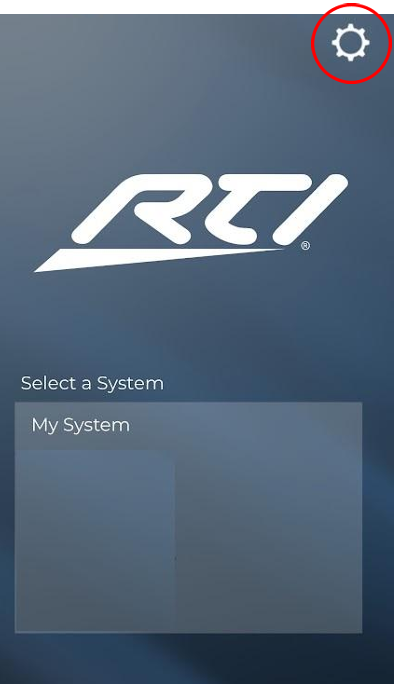
Tap the configuration cog button.
Step 2
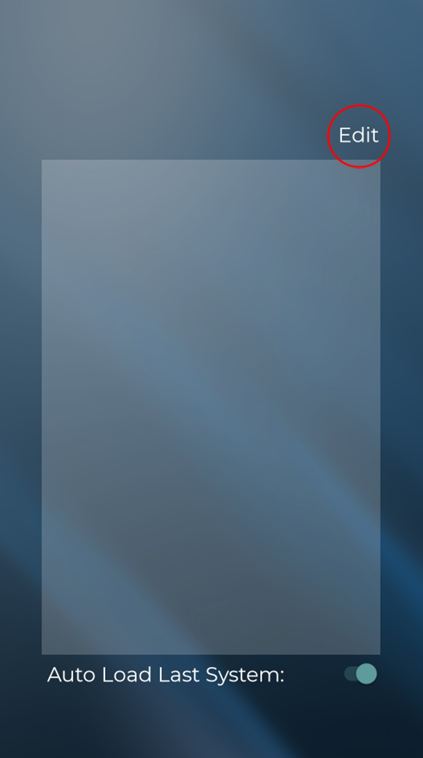
(Proceed to server setup.)
Step 3
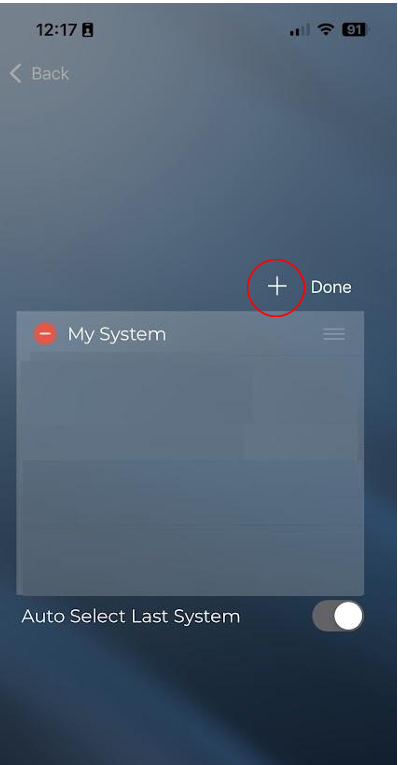
Tap the + button to add a new server address.
Select the Server (only one will appear).
Step 4
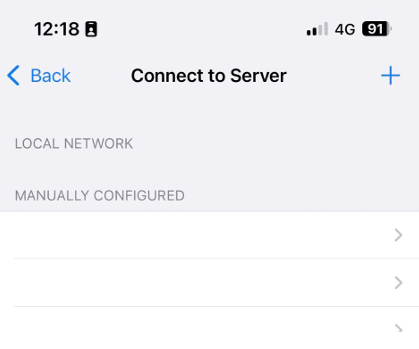
Tap Manually Configured.
Step 5
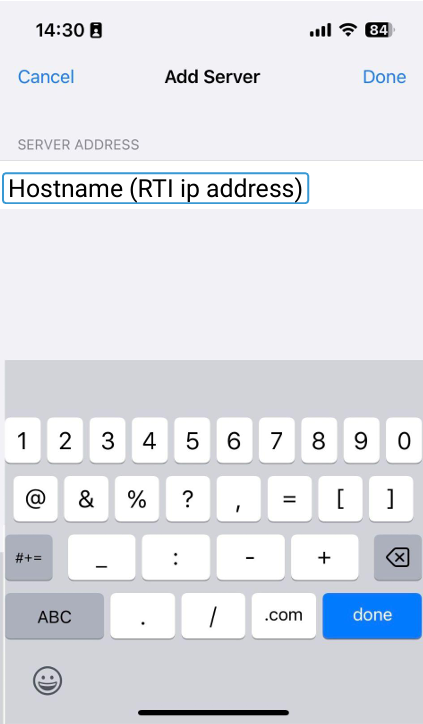
Enter the IP address of the RTI server on the house network:
-
Hostname (RTI IP address)
-
Hostname (RTI IP address)
Step 6
Select the iPhone device to connect to the AV control server.
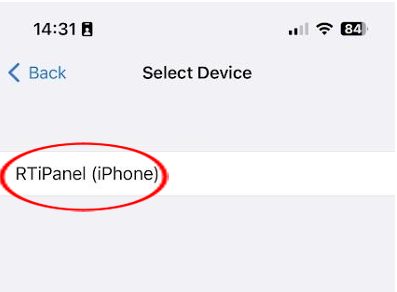
The AV user interface will load and become operational within a few seconds.